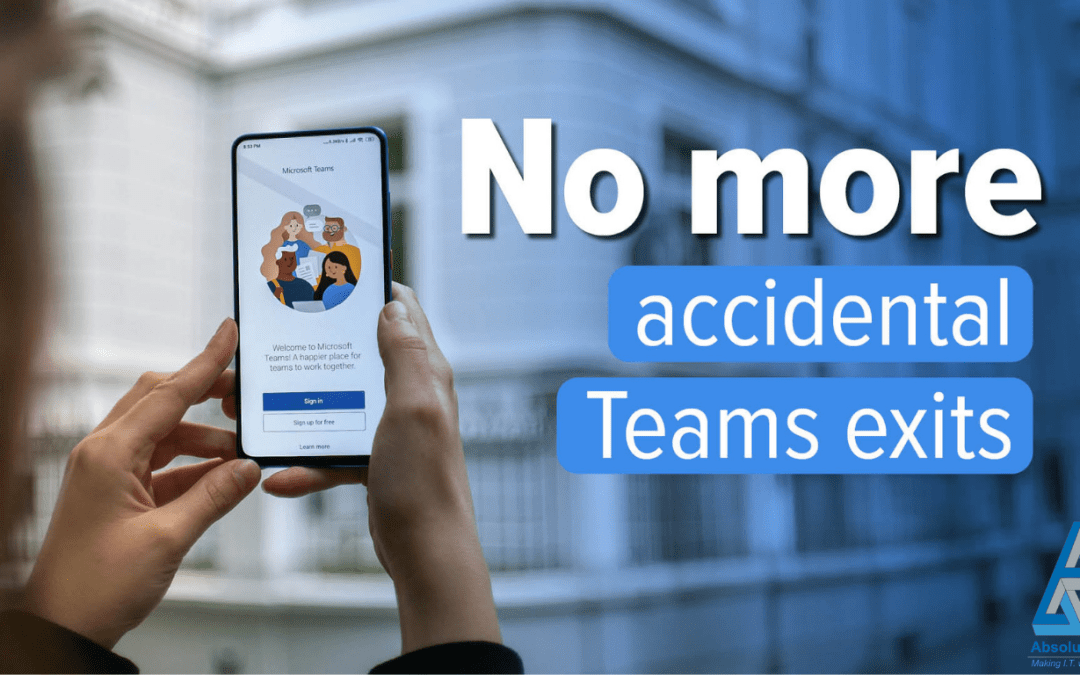
If your practice runs on Microsoft Teams, and most professional service firms now do, you will almost certainly have experienced the moment where someone vanishes mid-meeting. One second they are presenting a compliance update or walking a client through financial projections; the next, their screen goes dark and the rest of the meeting is left staring at an empty tile.
The cause is almost always the same. The Quit button in Teams sat far too close to other meeting controls. A quick attempt to click Share, toggle the microphone, or adjust video settings could easily result in an unintended exit. In a casual internal catch-up, it might raise a smile. In a client meeting, particularly with regulators, auditors, or high-net-worth clients, it creates an impression of disorganisation that no professional firm wants.
The Quit option in Microsoft Teams has caught out plenty of people, especially in fast-paced meetings where you’re clicking quickly between controls. For firms where reputation is currency, this was never a trivial annoyance. It was a genuine productivity and credibility risk.
What Microsoft Has Changed
Enough people complained that Microsoft has finally decided to fix it. Microsoft said it would introduce an alternative way to quit a meeting using the system tray (that’s the small area down by the clock on your Windows desktop). The idea is simple: Move Quit away from the main cluster of meeting controls so you’re less likely to click it by mistake. If you use the desktop version of Teams, you should already see the change automatically. There’s nothing your IT team needs to switch on.
For regulated firms, this is exactly the kind of improvement that makes a tangible difference to daily operations without requiring any project work, training rollout, or budget approval. The update arrives silently, and from that point forward, the risk of an embarrassing mid-meeting departure is significantly reduced.
Why This Matters More Than It Sounds
In professional services, meetings are not just conversations. They are the mechanism through which advice is delivered, decisions are documented, compliance is demonstrated, and client trust is maintained. A solicitor advising on a property transaction, an IFA presenting a retirement plan, or a mortgage broker guiding a client through affordability, all of these interactions depend on uninterrupted presence.
An accidental exit mid-sentence does not just interrupt the flow. It raises questions. Did they leave deliberately? Was there a technical problem? Should we reschedule? In regulated environments, where meeting notes may form part of an audit trail, even a brief disconnection can create gaps that need to be explained.
This is why seemingly minor interface improvements carry disproportionate weight for professional firms. Reducing the chance of accidental exits protects the integrity of the meeting, preserves the professional tone, and avoids unnecessary follow-up work. It is also one less thing for your team to worry about during high-stakes conversations. Keeping your technology in good working order is a similar principle to the one we discussed when looking at how technical debt quietly erodes business performance; small, overlooked issues compound into significant operational drag over time.
The Hidden Setting Most People Do Not Know About
Now, just to manage expectations, this doesn’t completely eliminate the risk of clicking the wrong thing. If you’re aiming for “Share” and mis-click “Leave”, you could still drop out of the meeting. We’re not living in a perfect world just yet.
However, there is a second layer of protection that many firms have not activated. Inside Teams, if you go into Settings, then General, there’s an option to turn on a confirmation message before leaving a meeting. That extra “Are you sure?” step can save you from disappearing at exactly the wrong moment.
For any professional firm handling client-facing calls, we would recommend enabling this setting across your organisation as a matter of course. It takes seconds to configure and provides a meaningful safety net. Speak to your IT support team, or to us, and it can be rolled out centrally.
Think of it as a small, protective control. The same logic applies to the way firms now approach credential security. A single forgotten safeguard, whether it is a confirmation prompt or an old password left active, can cause disproportionate harm. We explored this principle in depth when we wrote about how old passwords are still unlocking business systems and why multi-factor authentication has become essential for professional firms.
A Cleaner Meeting Experience: The New Toolbar Option
Microsoft is also rolling out another update that will let you hide the meeting toolbar during calls. That means more screen space and fewer distractions while you’re presenting or focusing on content.
For professional firms that regularly share documents, spreadsheets, or compliance dashboards during meetings, this is a practical improvement. A cluttered toolbar can obscure key information, particularly when sharing detailed financial models or legal documents on smaller screens. The ability to hide the toolbar when it is not needed gives presenters a cleaner, more focused view and a more polished impression for clients and colleagues watching the presentation.
Combined with the Quit button relocation, these updates collectively make Teams meetings feel more controlled, more professional, and less prone to the small technical hiccups that can undermine an otherwise well-prepared presentation.
How to Make Sure Your Firm Benefits
These updates roll out automatically on the desktop version of Teams, so there is no action required to receive them. However, getting the most from them does require a moment of deliberate configuration:
- Enable the leave-meeting confirmation prompt. Navigate to Settings > General inside Teams and switch on the option that asks “Are you sure?” before you leave a call. This should be standard practice for all client-facing staff.
- Brief your team on the toolbar hide feature. Make sure presenters know they can now hide the meeting toolbar during screen-sharing. This is particularly useful for those who regularly present reports, dashboards, or compliance documentation.
- Review your wider Teams configuration. Updates like these are a useful prompt to check whether your Teams environment is optimised for your firm’s needs. Are meeting policies configured correctly? Are external guest permissions appropriate? Is Teams integrated properly with your calendar, compliance tools, and document management?
- Consider the broader principle. Small configuration improvements, whether it is a confirmation prompt, a cleaner toolbar, or a tighter security setting, compound over time. Firms that regularly review and fine-tune their tools tend to experience fewer disruptions and higher staff satisfaction.
The Bigger Picture: Small Changes, Significant Impact
It is tempting to dismiss interface tweaks as trivial. But for professional service firms that rely on virtual meetings every day, the cumulative effect of these small improvements is substantial.
If your people rely on Teams every day, these incremental updates reduce embarrassment, reduce disruption, and make virtual meetings feel just a bit more polished.
In a sector where professionalism is everything, where a single awkward moment in a client call can shift the tone of an entire relationship, these details matter. The firms that pay attention to them are the ones that consistently deliver a smoother, more confident experience to their clients.
This is the same philosophy that underpins good IT management more broadly. Just as regularly reviewing your devices can prevent costly failures, regularly reviewing your software environment keeps daily operations running smoothly. We recently explored how small maintenance habits can extend the life of business PCs and avoid unnecessary capital expenditure and the same mindset applies to your collaboration tools.
A Practical Checklist for Your Firm
Use this as a quick reference to make sure your organisation is benefiting from these updates:
- Confirm the Quit button relocation is active. Check the desktop Teams client and verify the Quit option has moved to the system tray.
- Enable the leave-meeting confirmation. Settings > General > Turn on the “confirm before leaving” option.
- Try hiding the meeting toolbar. During your next screen-share, test the toolbar-hide feature and note the improvement in screen space.
- Communicate the changes to your team. A brief internal note or a mention in your next team meeting ensures everyone knows these options exist.
- Schedule a broader Teams review. Use this as a prompt to review meeting policies, guest access, recording settings, and integration with your existing compliance and document management tools.
- Stay informed about future updates. Microsoft regularly releases incremental improvements. Having a managed IT partner who monitors these changes ensures your firm always benefits from them promptly.
What This Tells Us About Managing Technology in Professional Firms
Every tool your firm uses, from Teams to your practice management software, accumulates small friction points over time. Left unaddressed, they slow people down, create unnecessary risk, and chip away at the professional experience you deliver to clients.
The best-run firms treat technology the way they treat compliance: as something that requires ongoing attention, not a one-off project. Regular reviews, sensible configuration, and a willingness to act on small improvements all contribute to a working environment that supports your team rather than frustrating them.
If you would like help reviewing your Microsoft 365 environment, optimising Teams for your firm, or simply ensuring your technology is working as hard as your people, Absolutely PC is here to help. We specialise in supporting regulated and professional service firms with practical, security-first IT management.
What next?
One of my passions is helping businesses to succeed and if I can help you save some money as well – even better. You can fill out our contact form, phone us or click on the appointment button below and let’s start a conversation to see if I can help your business. Our guarantee:
- There are no hidden charges – this is a 100% free 15 minute consultation with no hidden charges.
- We will never spam you or sell on your contact details.
- We will treat your information with absolute confidentiality.
Other Posts for you to Enjoy